A guide for suppliers working with Bath & North East Somerset Council using the Proactis Supplier Network.
Registering and responding to an invitation, completing B&NES supplier information, maintaining contact and payment details, viewing contracts, and getting support.
Council contact: suppliers@bathnes.gov.uk
Start here
Use this guide to respond to an invitation from Bath & North East Somerset Council (B&NES), complete the supplier engagement, and maintain your organisation’s details in the Proactis Supplier Network afterwards. Work through the sections in order.
Before you begin
- Use the invitation link sent to the contact email address we have on file. If your organisation already has a Proactis Supplier Network account, use the existing account rather than creating a duplicate.
- Have your organisation details, primary contact details and relevant additional contact addresses available.
- Have your PPON unique identifier to hand, if applicable.
- Have bank or payment details and the supporting letterhead document requested by B&NES available.
- Allow time to review every answer before submitting the engagement for approval.
B&NES will invite suppliers to complete a supplier engagement in the Proactis Supplier Network. The invitation provides the route into the relevant engagement. Use the invitation link first, then either sign in to an existing organisation account or register only if your organisation does not already have one.
- Open the invitation and follow the link to the Proactis Supplier Network.
- Create an account, or sign in to your organisation’s existing account.
- Locate the “Invitation to Engage” notification and open it using the action arrow.
- Review the engagement introduction and work through each section.
- Complete all required information, attach requested supporting documents, review the answers and submit the engagement for approval.
If your organisation does not already have an account
Use the registration route only where your organisation does not already have a Proactis Supplier Network account. Creating a second account can separate users, notifications and organisation information across duplicate records.
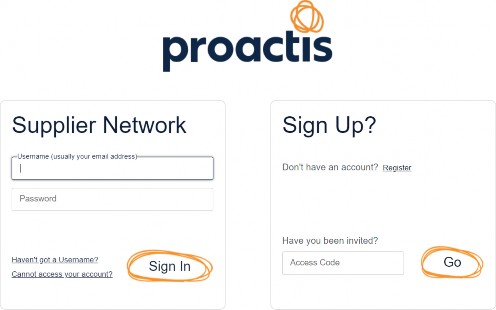
- From the Supplier Network sign-in page, select “Register”.
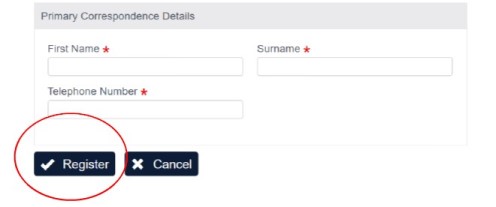
- Enter the requested email address and organisation information, then submit the registration request.
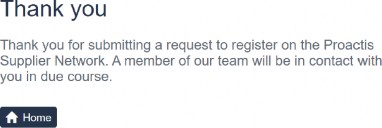
- Proactis will review the request. When it is approved, the named contact will receive an activation email.
- Open the activation link, accept the Proactis terms and conditions, and create a password.
- Sign in and continue with the B&NES supplier engagement.
- Organisation details, including registration, VAT and DUNS information where applicable.
- Primary contact details and any additional users who need access.
- Address and email contact details for correspondence, trading and payment or remittance purposes.
- PPON unique identifier, if requested.
- Bank and payment details, with the supporting letterhead evidence requested by B&NES.
- B&NES-specific supplier questions.
- Final review and confirmation before submission.
Complete your organisation profile
Before completing the B&NES-specific questions, review the organisation profile and make sure the core information is complete and accurate.
Organisation details
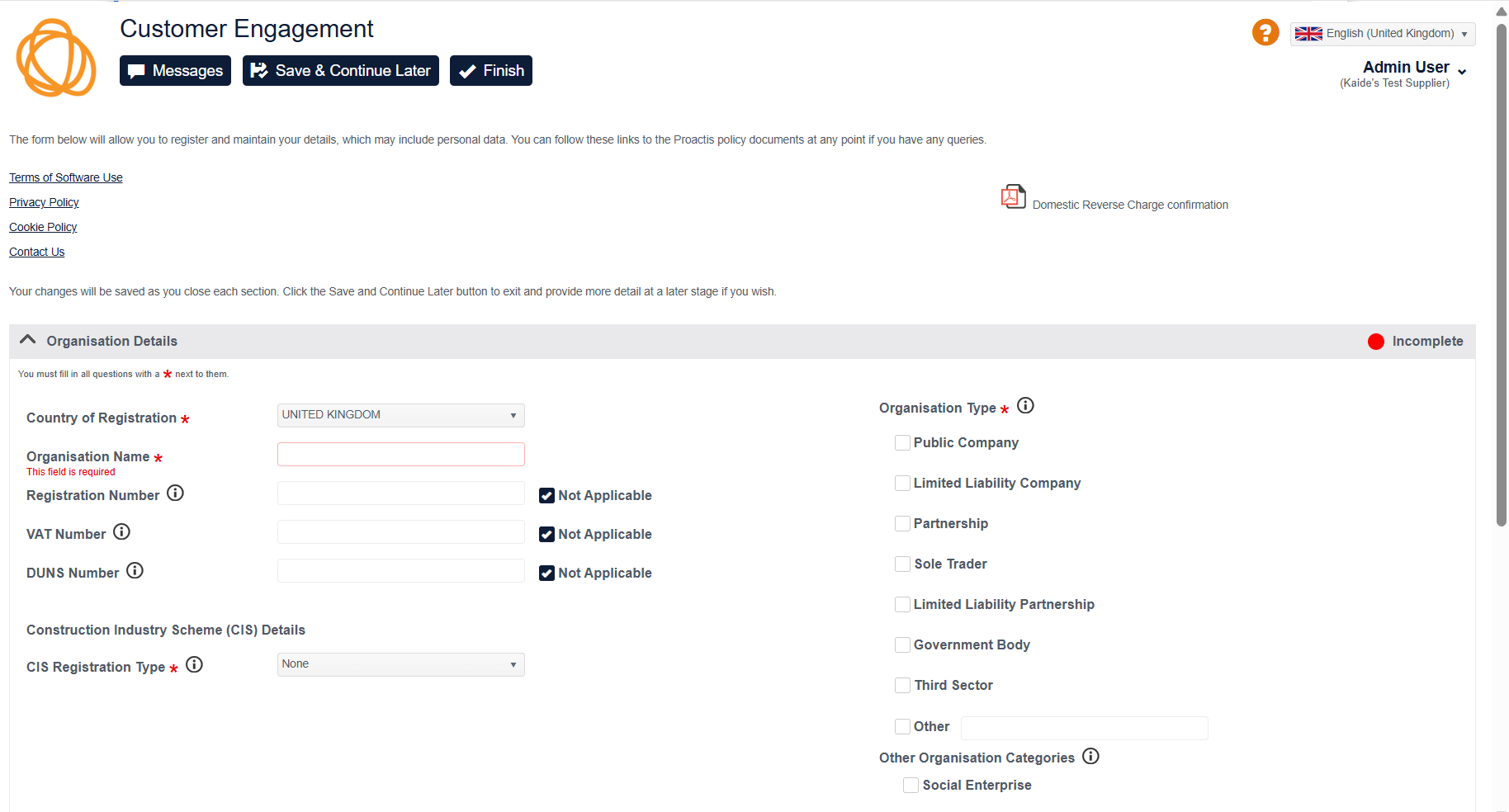
Enter the organisation’s Company Registration Number, VAT Registration Number and DUNS number where applicable. If a field does not apply, use the “Not Applicable” option where it is available. Select the organisation type and complete all fields marked with a red asterisk.
Users and account resilience
Add appropriate users for the organisation and keep their details current. B&NES recommends maintaining more than one active user where possible so that access and notifications do not depend on one individual. Use monitored organisational or shared mailboxes where appropriate.
Products, services and geographical regions
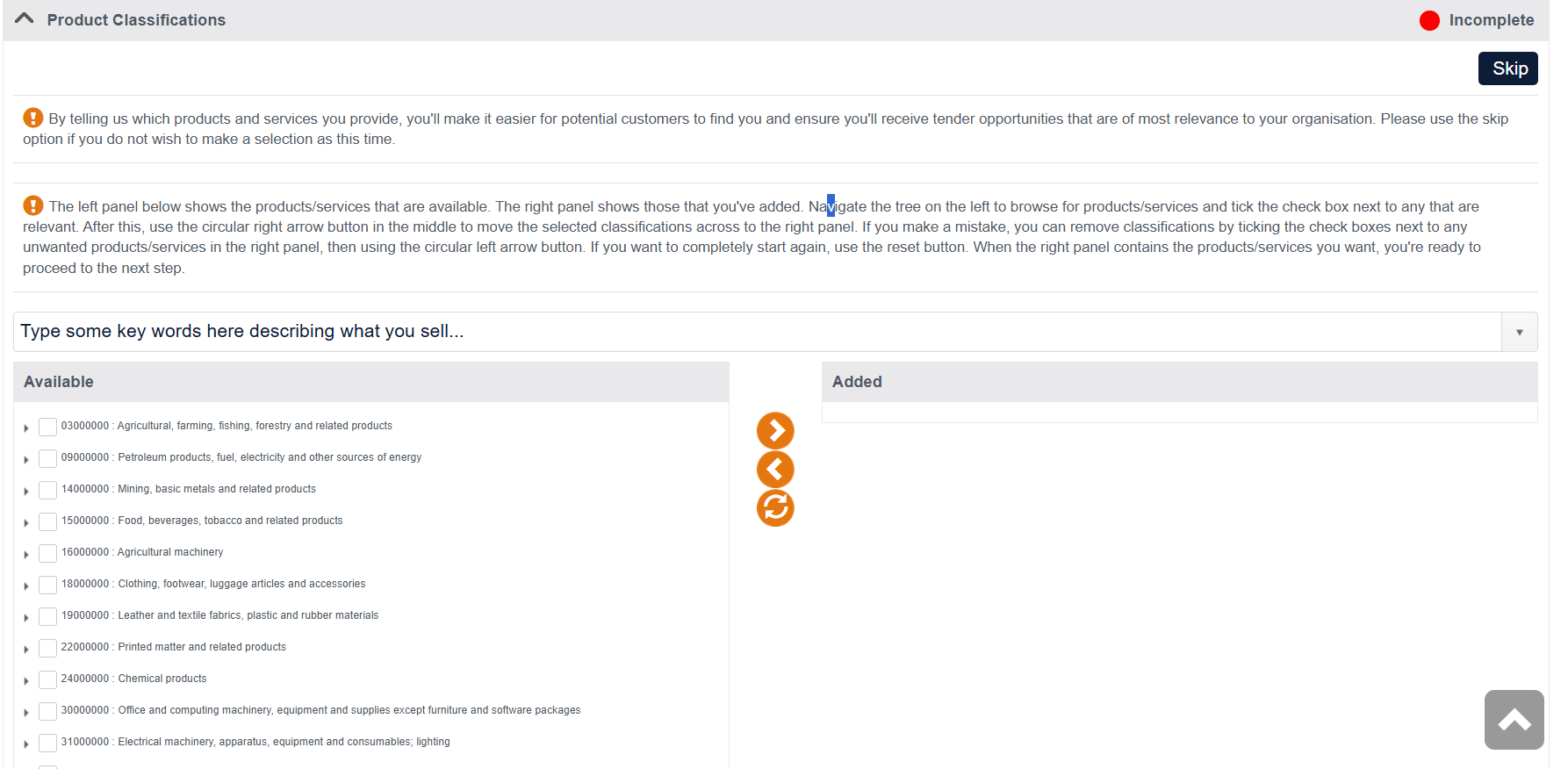
Use Common Procurement Vocabulary (CPV) codes to identify the products and services the organisation can provide. Search by keyword or browse the available list, select the relevant codes and move them into the organisation profile. Choose only codes that genuinely describe the organisation’s offer, as procurement teams may use these classifications when identifying suppliers. Also select the geographical regions in which the organisation operates.
Local supplier question
The portal defines a local supplier as an organisation based within B&NES boundaries or neighbouring local authority areas. If you answer Yes, select the local area in which the organisation is registered or has substantial business. Select Other if the organisation is not a local supplier.
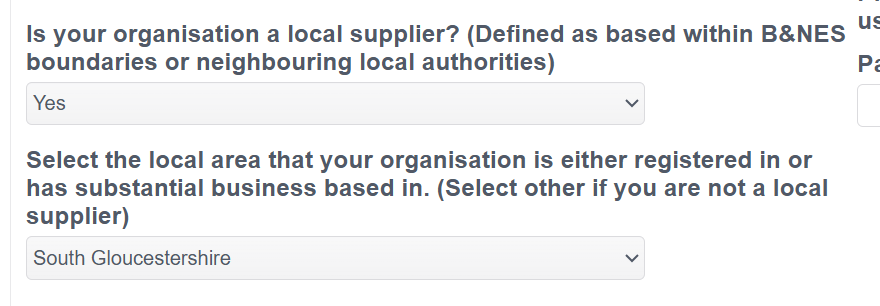
Use the organisation’s actual registered or substantial business location. Do not select an area solely because work is delivered there.
PPON unique identifier
Where requested, enter the organisation’s identifier from the central digital platform used for public procurement. If the organisation has not yet registered, use the government guidance before completing this field: How to register your organisation and find your unique identifier.
Add and maintain the address, email and user information needed for B&NES correspondence, payment notifications and account access. Complete this before submitting the engagement so notifications are sent to the correct place.
- Open the organisation or business details area in the Supplier Network.
- Review the address and contact records already held for the organisation.
- Add any missing correspondence, registered, trading or payment or remittance address required by the engagement.
- Check the email address stored against each address. Testing has shown that the invitation email address may be carried into an address contact field, so replace it if another mailbox should receive correspondence.
- Save the changes, then return to the engagement and confirm the information is complete before submission.
Where appropriate, use a monitored shared mailbox rather than an individual employee’s email address. This reduces the risk of missed notifications when personnel change.
Complete the payment section during the initial engagement and attach the supporting letterhead requested by B&NES. Review the account name, sort code, account number and evidence carefully before submission.
During the initial engagement
- Find the payment or bank details section of the B&NES engagement.
- Enter the requested account information exactly as shown on the organisation’s evidence.
- Attach the requested supporting document on organisation letterhead.
- Recheck the sort code, account number, account name and supporting document before submitting.
After the engagement has been submitted
Use the Supplier Network account information area to review the organisation’s current details. If the payment fields are available for amendment, update them and save the change. If the fields are unavailable, or if B&NES requests independent verification, contact the Council supplier team for the approved change process.
Once all required information has been completed, review the engagement carefully and submit it for approval. Keep the Supplier Network account maintained afterwards so future notifications, contract information and supplier records remain accurate.
Maintain your Supplier Network account
After the engagement has been submitted, keep the organisation profile, address records, users, contact types and payment information up to date. Regular maintenance reduces the risk of missed notifications, outdated contacts or incorrect supplier information.
Update organisation information
- Sign in to the Proactis Supplier Network.
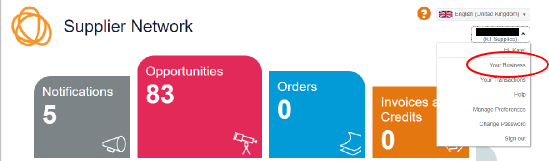
- Select the organisation name in the top-right corner and choose “Your Business”.
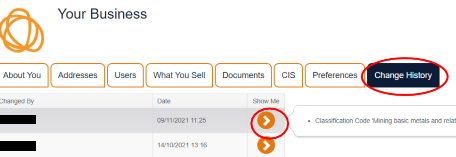
- Use the tabs across the account area to review organisation information, addresses, users, products and services, documents, preferences and change history.
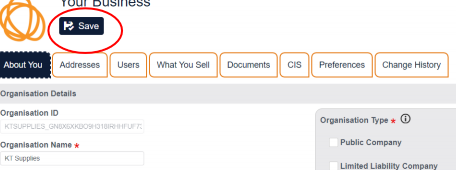
- Select the field that needs to be amended, enter the updated information and select “Save”.
- Open “Change History” to review changes, including the date and the user who made each change.
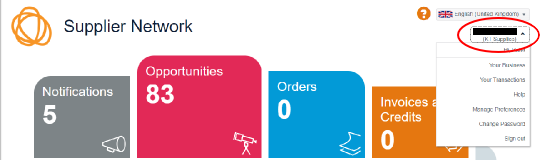
Open the organisation menu.

Manage users and contact types
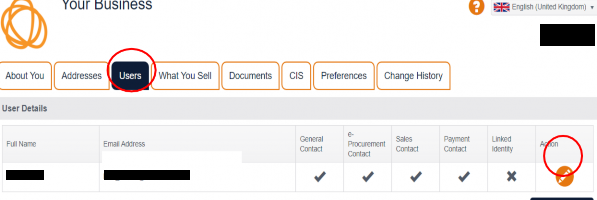
From “Your Business”, open the “Users” tab to review everyone who can access the account and their access levels.
- To edit an existing user, select the action button alongside the user and amend the required details.
- Use the “Contact Type” tab to maintain the categories assigned to the user.
- Make sure the organisation retains at least one appropriate contact for each category required by the Supplier Network.
- To add a user, select “Add User”, complete all mandatory contact information, assign the appropriate contact types and select “OK”.
- Review the user list regularly and remove or amend access promptly when responsibilities change.
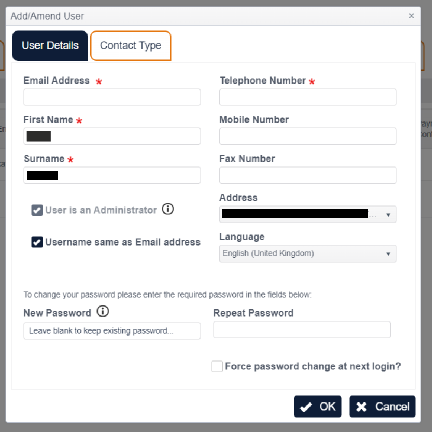
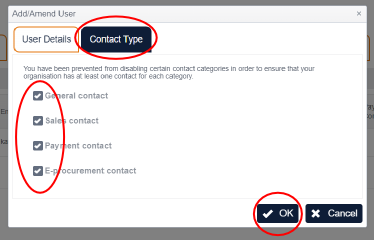
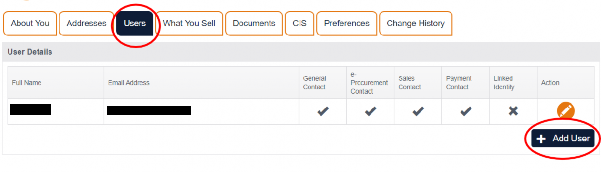
Maintain at least two active users where possible and avoid relying solely on an individual employee’s mailbox. This reduces the risk of missed notifications or loss of access when personnel change.
Change your password
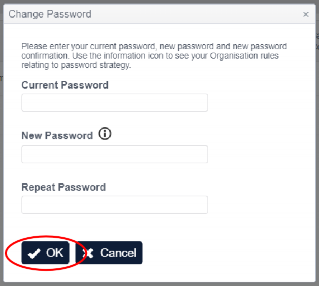
Select the organisation name in the top-right corner, choose “Change Password”, enter the current password and the new password, and then select “OK”.
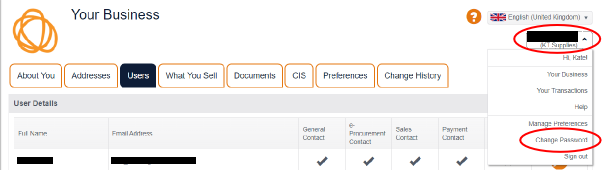
The Contracts area can be used to view active contracts made available to the supplier account, including contract dates and related documents.
- Sign in to the Proactis Supplier Network.
- From the home page, select the Contracts tile.
- Find the relevant B&NES contract in the list.
- Use the action arrow in the “Show Me” column to open the contract.
- Review the available contract information. Related documents can be downloaded using the file icon.
- If a contract query must be sent through the portal, select “New Message”, complete the subject and message, attach supporting documents if needed, and send.
When a contract message is sent through Proactis, check the Notifications tile for replies and other correspondence.
Questions about the B&NES engagement
Email: suppliers@bathnes.gov.uk
Contact B&NES if the question concerns Council-specific information, the engagement requirements, supporting evidence, or the status of the supplier’s submission.
Problems using the Supplier Network
Use Proactis Supplier Support for account access or technical problems with the Supplier Network. Include the account username, organisation ID, email address and a clear description of the issue. The organisation ID can be found after signing in under “Your Business”.
To raise a technical support case:
- Open the Proactis Supplier Support helpdesk and select “Raise a case”.
- Choose Bath and North East Somerset Council as the buying organisation.
- Continue to the case form. A Supplier Support account is not required to raise a case.
- Provide the account username, organisation ID, email address and a clear description of the problem.
- If the organisation ID is not known, sign in to the Supplier Network, open “Your Business” and check the identifier shown in the account area.
Open Proactis Supplier Support Website
B&NES Supplier Support email: suppliersupport@proactis.com